What is Maven and How to install Maven?

MavenSW, located at http://maven.apache.org, is a great JavaSW project build and management tool from the ApacheSW Software Foundation. One primary focus of Maven is as a build tool, performing tasks similar to AntSW, although it's more like Ant on steroids.

A very significant aspect of Maven is the use of repositories to manage jarW files across different projects. In a simple software development environment, you may work on a project and check jar files directly into your project in your version control system, and you may do this in each project that you work on. This system works fine in relatively simple situations, but it becomes unweildy as projects grow in size, in complexity, and in their numbers of developers. In the Maven system, jar files are stored in remote repositories, and they are downloaded to your local machine to a local repository as needed. Typically, these same jar files are accessed across projects, and Maven makes it very simple to manage different versions of jar files, and to group together sets of related jar files. Building different types of projects (such as jars, wars, and ears) is handled very cleanly by Maven. Maven can perform tasks such as generate useful documentation about your project. The features of Maven go on and on.

Maven 2 is very significantly different from Maven 1. This tutorial will cover Maven 2.


To set up Maven, you need to:

  1. Download Maven and unzip it
  2. Create a JAVA_HOME System Variable
  3. Create an M2_HOME System Variable
  4. Add %JAVA_HOME%\bin;%M2_HOME%\bin; to your System Path

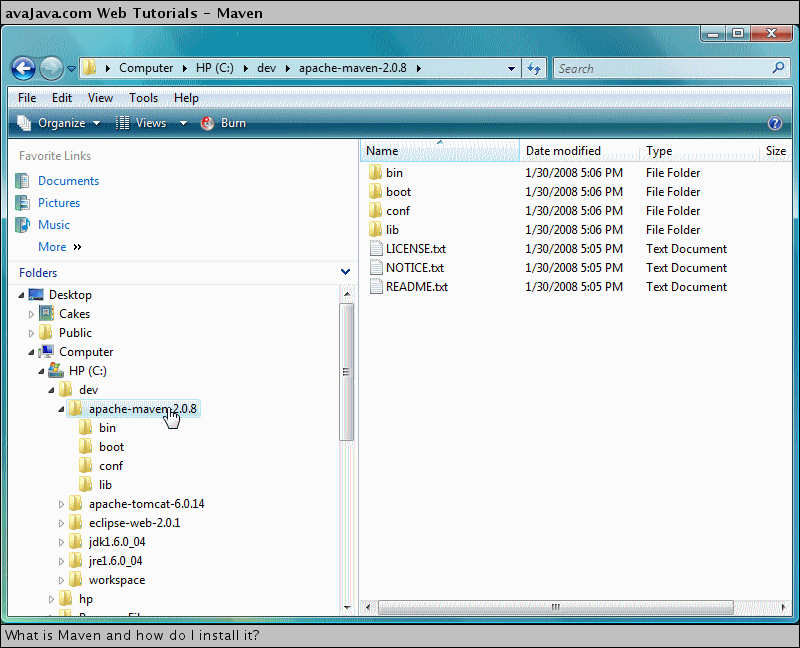
To begin with, download the latest Maven from http://maven.apache.org/download.html. I downloaded apache-maven-2.0.8-bin.zip and extracted it to C:\dev\apache-maven-2.0.8.\apache-maven-2.0.8.


apache-maven-2.0.8-bin.zip extracted to C:\dev\apache-maven-2.0.8

Go to your System Properties → Environment Variables.

Environment Variables

Create a JAVA_HOME System Variable and point it to your Java installation. I pointed mine to C:\dev\jdk1.6.0_04.

JAVA_HOME System Variable

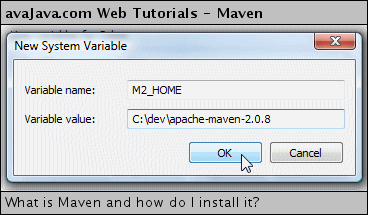
Create an M2_HOME System Variable and point it to your Maven installation. I pointed mine to C:\dev\apache-maven-2.0.8.

M2_HOME System Variable

You should now have JAVA_HOME and M2_HOME System Variables.

System Variables

Add %JAVA_HOME%\bin;%M2_HOME%\bin; to your Path System Variable. This puts your Java and Maven executables in the System Path so that they can be executed without their fully qualified paths.

Adding %JAVA_HOME%\bin;%M2_HOME%\bin; to Path System Variable


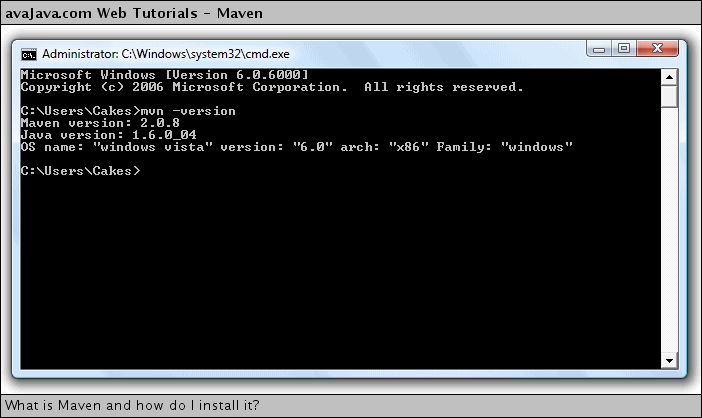
Open a command prompt window, and at the command prompt, type 'mvn -version'. You should see a message displaying the version of MavenSW and the version of JavaSW.

'mvn -version' at command prompt

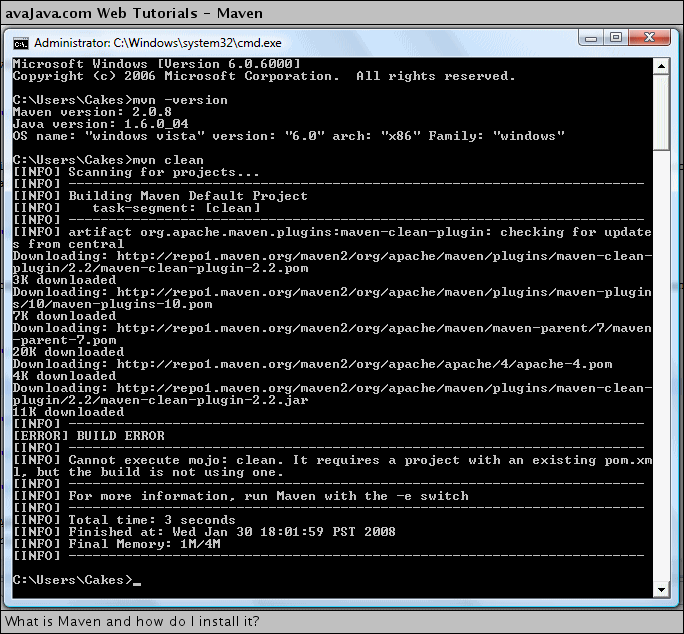
Next, at the command prompt, try typing a command like 'mvn clean'. You'll probably see that some jarW files downloaded from the Maven central repository to your machine. After that, we see a 'BUILD ERROR'. This message is fine. This is telling us that we ran the command but that there was no pom.xml file present in the directory where we ran the command.

'mvn clean'

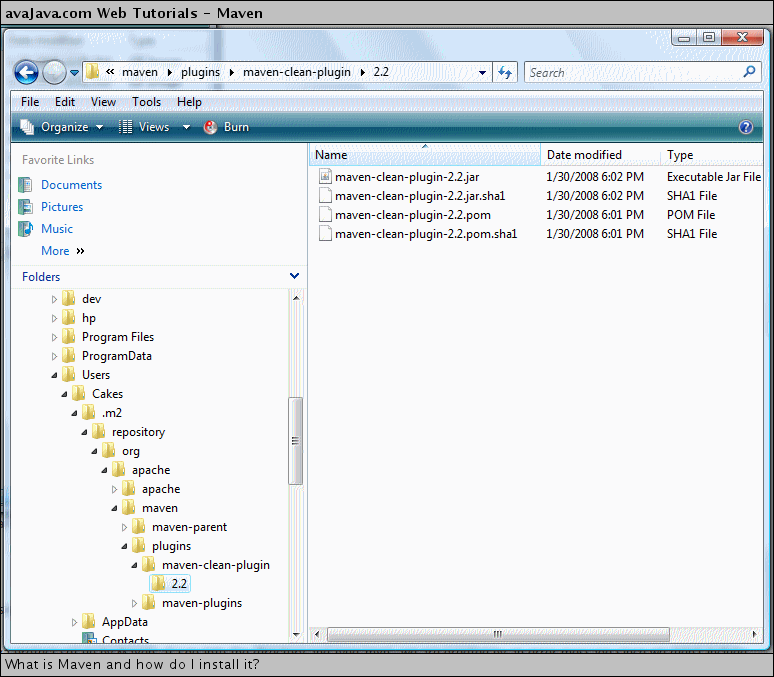
After running the 'mvn clean', if we go to our user home directory (for me, C:\Users\Cakes), we can see that an .m2 directory has been created by mavenSW. Within .m2, we can see a 'repository' directory. This is the default location for your local maven repository. This local repository directory contains things such as the jar files that your projects use. In addition, it contains the jar files and things that maven itself needs. When we ran the 'mvn clean' command, we asked maven to do a 'clean' command, which requires the maven-clean-plugin jar file. If you look back at the command prompt output after the 'mvn clean' command, you can see that the maven-clean-plugin jar file was downloaded, since maven realized that it needed this jar file in order to do the 'clean'.

default .m2/repository created for local maven repository

If we examine the contents of our local maven repository, we can see that it contains the maven-clean-plugin jar file. On my machine, the jar is located at C:\Users\Cakes\.m2\repository\org\apache\maven\plugins\maven-clean-plugin\2.2.

local maven repository contains maven-clean-plugin

Our Maven is installed and working. We can now get to work creating projects with this great tool.


Click here to View more...

What is Continuum?


Continuum is the tool used to monitor changes in Subversion (commits) and schedule frequent re-builds, based on those changes. Continuum exploits project information stored in the POM, and uses Maven to perform the builds.
Continuum understands the projects dependencies and builds projects in the proper order.

The repeatability element of project building is guaranteed by the fact that the tooling and configuration used on the developer's workstation or the build workstation is exactly the same.

See the Continuum website for more details


Click here to View more...

Authentication in WebSphere Portal - Credential Vault Service

Enterprise application integration (EAI) is a prime objective driving the decision to implement a portal. Portals are often used to integrate data and applications from remote systems and present them in a unified manner to users through a Web-based workspace. Because these back-end systems can contain sensitive business information and functionality (for example, a company's order control system) or private data (e-mail or employee records), access should be well controlled.

The basis of access control is authentication, which ensures that the person or program requesting access is identified beyond doubt. It's recommended that back-end systems don't relinquish control of their application security to the portal server, but continue to do their own authentication and authorization. However, users shouldn't be repeatedly prompted to authenticate. This is where single sign-on (SSO) comes into play.

SSO isn't an entirely new idea. However, it raises quite a few problems, and many attempts to develop a general SSO solution have failed. Users are typically known by a variety of identities - one per system in the worst case. The identity a user proves at one system must be mapped securely to an identity that a second system can handle. In addition, in companies that have grown their back-end systems over the years, there are many systems that no one dares to touch. Therefore, it's a common requirement that they're integrated into an SSO realm without any modification to the system itself.

This is a difficult problem. However, using a portal to realize EAI gives you an advantage: the portal becomes a single entry point for all user requests. At this central instance, it's possible to map the user identities transparently to the back-end systems. All you need is a registry for those mappings and a service that leverages this feature to the portlets. WebSphere Portal calls this component the credential vault.

This article explores authentication in the context of WebSphere Portal 4.1 and demonstrates how to provide a full SSO experience to portal users.

Authentication Setups
Portal server authentication is like the front door of a building with all room doors unlocked - the key to the portal is the master key to all applications and information within it. WebSphere Portal leverages the application server's authentication subsystem, which provides support for the following authentication setups:

  • Use of native WebSphere Application Server authentication: A custom login form posts the user's authentication data to the portal servlet that requests WebSphere Application Server security to validate the user's authentication data. This setup exploits the integration of WebSphere Portal with WebSphere Application Server and the fact that the portal can be configured as a secure Web application.
  • Use of an authentication proxy or HTTP server plug-in: WebSphere Application Server provides the Trust Association Interceptor (TAI) interface, which allows it to establish trust with authentication proxies and authentication plug-ins.

Authentication Through WebSphere Application Server Security
To use WebSphere Application Server security, the portal is configured as a secure Web application. When WebSphere Application Server receives a request for the portal application, its security component redirects the client to a login form that prompts the user to provide authentication credentials. The form posts the credentials to WebSphere Portal's servlet, which makes the required calls to WebSphere Application Server's security functions to log the user in to WebSphere Application Server's security context. WebSphere Application Server authenticates the user by checking the provided credentials against the user registry, which can be an LDAP directory or a custom user registry.

Authentication Through Proxy or HTTP Plug-In
An external authentication component can protect the portal by intercepting all requests targeted to WebSphere Portal destinations. Such an authentication component can be a proxy server like Tivoli Access Manager's WebSEAL or a plug-in to the IBM Edge Server, like WebSEAL Lite from Tivoli, SiteMinder from Netegrity, or GetAccess from Entrust.

Such an external authentication component works by checking the provided credentials against a user registry (in most cases an LDAP directory). TAIs registered with WebSphere Application Server establish trust between the server and the authentication component protecting it. This is a common scenario in production environments.

Trust Association Interceptor
With a TAI registered, WebSphere Application Server relies on an external authentication component for authenticating requests rather than performing authentication itself. The interface that WebSphere Application Server defines for a TAI has functions with which the TAI indicates that it can handle a request and that the request is already authenticated.

After a request for a portal destination passes the external authentication component, it's received by WebSphere Application Server and sequentially passed to the registered TAIs until one TAI indicates that it's responsible for authentication and either accepts or rejects the request.

If no TAI can handle the incoming request, WebSphere Application Server falls back to its native authentication, just as if there were no TAIs. In the case of WebSphere Portal, the client would be redirected to the custom login form. However, this should occur only with requests that bypassed the external authentication component.

Single Sign-On
The goal of SSO is to authenticate a user one time within an environment and use that single authentication (for the duration of the session) as a basis for access to other applications, systems, and networks.

In the context of the portal server, there are two SSO realms, the Client-to-WebApp SSO realm and the Portal-to-BackEnd SSO realm (see Figure 1).

With Client-to-WebApp SSO, a client logs in to one Web application one time and is then able to access all other applications that are part of the same SSO realm without a second authentication challenge. It doesn't matter whether the portal server or one of the other trusting Web applications is the authenticating Web application.

Portal-to-BackEnd SSO allows a portal client to log in to the portal once and then access a number of back-end applications without having to authenticate at each application.

Client-to-WebApp SSO
Client-to-WebApp SSO can be provided through a variety of mechanisms, namely:

1. Application server built-in SSO support (LTPA)
2. Authentication proxy SSO support (WebSEAL, Netegrity SiteMinder, etc.)
3. Other third-party SSO frameworks/environments, such as GetAccess from Entrust

The functional principle of these SSO solutions is essentially the same. Upon successful authentication the client gets a security token that entitles it to get through the policy enforcement point(s) (PEP) with subsequent requests. It's not important in this context whether this is a number of distributed PEPs, such as several application servers (mechanism 1); a single PEP, such as one central authentication proxy (mechanism 2); or a mixture of both (mechanism 3).

Portal-to-BackEnd SSO
Starting with Version 4.1, WebSphere Portal offers a credential vault as a portlet service. This service provides a mechanism to portlets (and to the portal itself) for mapping from a user identity (usually a user ID) to another user identity and usually a credential (such as a password) for that user ID.

Portlets no longer need to store user credentials as part of the user-specific portlet data. In fact, it's recommended that such portlets be migrated so that they make use of the credential vault.

The Credential Vault Service is composed of three levels. At the lowest level are vault adapters. A vault adapter is the SPI-specific plug-in between the vault service and a specific vault implementation. WebSphere Portal provides a default implementation; you can also use the vault implementation provided by IBM Tivoli Access Manager.

At the next level are vault segments, which correspond to a section of a vault that's either user or administrator managed.

At the top level are vault slots. A vault slot corresponds to a particular resource in a vault segment that a user may apply a secret to. It's through a vault slot that user secrets are created, retrieved, modified, and deleted.

Credential Vault Concepts
WebSphere Portal's credential vault (see Figure 2) is
organized as follows:


  • The portal administratorcan partition the vault
    into several vault segments. Each vault segment is associated with a certain vault implementation (the actual store) that allows different credentials to be kept in different physical stores. The segments can be created and configured only by portal administrators.
  • A vault segment contains one or more credential slots, the "drawers" where portlets store and retrieve the credentials. Each slot holds one credential (or one per user if it's an admin-defined slot).
  • A credential slot is linked to a resource in a vault implementation, where the credential secrets are actually stored. Examples for vault implementations are the portal server's default database vault or Tivoli Access Manager.

A vault segment is flagged to be either admin managed or user managed. While portlets (on behalf of a portal user) can set and retrieve credentials in both types of segments, they're permitted to create credential slots only in user-managed vault segments. Therefore, portlets that need a credential to complete their service have basically two options:

1. Use an existing credential slot that's been defined by the portal administrator in an admin-managed vault segment.
2. Create an "own" credential slot in a user-managed vault segment.

Which variant to choose depends on the use of the portlets in the portal installation.

The credential vault distinguishes between three different types of credential slots:

  • Shared-system credential slot: Stores system credentials, i.e., credentials where the actual secret is shared among all users and portlets
  • Portlet-shared credential slot: Stores a user credential that's shared among a user's portlets, i.e., the secret is user specific but the same for all the user's portlets.
  • Portlet-private slot: Stores a user credential that's not shared among portlets, i.e., the credential secret is user specific as well as specific to a certain concrete portlet instance.

Credential Vault Function
The Credential Vault Service maps a requested credential slot, a user ID, and a portlet ID to a resource in the vault; portlets can only retrieve a credential if a respective mapping rule exists. Some credentials (secrets) will be stored and managed by the portal (local default vault store); secrets that aren't stored locally will be acquired from the respective external vault.

If a credential isn't available, a respective exception is thrown. The portlet service passes this exception to the portlet to allow appropriate error-handling (e.g., ask the user to set the credential through the portlet's edit mode). The credential vault won't allow any person other than the credential owner to manage and/or use the credentials - not even a portal administrator. Portal administrators can configure the credential services that aren't controlled by the user. This includes the management of the vault segments, admin-defined slots, and system (shared) credentials. An administrator may not administer the user-defined credential slots. (Of course, all user-defined slots will be deleted if the respective user is deleted.)

The portal end user manages credentials directly in the portlet's edit mode. With WebSphere Portal 4, it's the portlet's responsibility to provide all necessary functions that allow the user to manage the slots used by this portlet. IBM provides framework sample code that supports portlet developers implementing these credential-management functions.

The portal engine, however, provides all the interfaces necessary to write a general credential management portlet for portal end users. Future versions of WebSphere Portal might ship with such a portlet.

Usually, a portlet binds the credentials it needs to certain credential slots only at runtime, not during deployment. However, it may predefine default values in its PortletSettings to ease the administrator's work or to support a staged development/test environment.

Active Credentials
Just like real valuables, credentials are perfectly safe as long as they're stored in the vault. However, when they're taken out, the owner might worry about their safety: What if the portlet developer didn't pay enough attention and violated security rules? WebSphere Portal's answer to this problem is active credentials.

The Credential Vault Service returns credentials as credential objects. An active credential object hides the credential's secret from the portlet; there's no method to extract it. In return, active credential objects offer business methods that take care of the authentication at the back-end system. That way, a portlet can trigger remote authentication without even knowing the credential's secret; the credential object provides the portlet with an already-authenticated connection. From a security point of view the portlets never get in touch with the credential secrets, and a portlet developer can't accidentally violate security rules (see Figure 3).

All credential types available within the portal are registered in a credential-type registry. WebSphere Portal Server 4.1 provides a small set of credential types out of the box; additional credential objects can easily be added. The active credential classes shipped with WebSphere Portal provide support for standard authentication mechanisms such as HttpBasicAuth, HttpFormBasedAuth, or POP3 authentication. Furthermore, there are credentials that integrate with common SSO solutions, namely LTPA, WebSEAL, and SiteMinder.

Programming Example
Scenario: A company's buying department runs a portal that integrates different legacy applications. One is an ordering-server application with a simple Web front end. Several employees use the ordering portlet, but the application is secured by a system ID - it doesn't support multiple user accounts.

Design solution: The portlet needs to access the legacy application under a system ID. The portal administrator therefore creates a credential slot, "StockManagementSystem", in an admin-managed vault segment; marks it as a shared system credential; and stores the ordering system ID and password in this slot (see Figure 4).

The portlet allows the credential slot ID to be set during deployment, so the buying department's employees don't have to care about credentials at all; they can enjoy an SSO experience right from the start. In the portlet's code, the credential service is used as follows:

1. Get the Credential Vault Service.

PortletContext context = this.getPortlet
Config().getContext();
CredentialVaultService service =
(CredentialVaultService)
context.getService(CredentialVault
Service.class);

2. Retrieve the configured slot ID.

String slotId = (String) request.get
Data().getAttribute("credential slot id");

3. Set the credential object configuration.

HashMap config = new HashMap();
config.put(HttpFormBasedAuthCredential
.KEY_USERID_ATTRIBUTE_NAME, "userid");
config.put(HttpFormBasedAuthCredential
.KEY_PASSWORD_ATTRIBUTE_NAME, "password");
config.put( HttpFormBasedAuthCredential
.KEY_LOGIN_URL, "OrderApp.yourco.com/login.jsp");
config.put(HttpFormBasedAuthCredential.KEY_
LOGOUT_URL,"OrderApp.yourco.com/quit.jsp");
config.put( HttpFormBasedAuthCredential
.KEY_USE_AUTH_COOKIES, Boolean.TRUE);

4. Retrieve the credential object from the credential vault.

HttpFormBasedAuthCredential credential =
(HttpFormBaseduthCredential)
service.getCredential(slotId,
"HttpFormBasedAuth",config,request);

5. Use the credential object to log in at the server application, get a connection, and send the request.

credential.login();
connection = credential.getAuthenticated
Connection("OrderApp.yourco.com/request.jsp");
// Work with the connection: send an HTTP GET or POST and
evaluate the response

6. Use the credential object to log out at the back-end application.

credential.logout();

Summary
Authentication and single sign-on are important issues for portals. WebSphere Portal Server can be set up to rely on the application server's authentication or to use an external authentication component. Existing mechanisms for client-to-Web application single sign-on are leveraged, and the portal server's credential vault creates new possibilities for seamless integration with back-end systems.



Click here to View more...

What is Maven?

Maven is a Java tool that builds and maintains project artefacts (like JAR, EAR or WAR files) from the source code and a project description file, called the POM (Project Object Model).

Maven, much like Ant, has the concept of goals, which correspond to build tasks that depend on the development lifecycle phase (compile, test, package, install, deploy, ...)
The most remarkable feature of Maven, though, is its management of project dependencies. The project POM defines a list of dependencies on artefacts from other projects (like Utility JARs for instance). These artefacts are stored in a central repository, and indexed by their groupId, artefactId and version.


When a developer wants to build a project, he/she doesn't need to worry about where to find the JARs that are required, as Maven will automatically retrieve those from the central repository of artefacts, and compile the project. The required list of JARs is taken from the POM dependency list.Better even, if those JARs in turn depend on other JARs, Maven will recursively descend the list of dependencies for those artefacts and bring them into the compilation environment.
See the
Maven website for more details.
Click here to View more...

Subclipse and Eclipse 3.5/Galileo

With the Eclipse 3.5 final release now available, I thought it would be good to get a post up for Subversion users that are looking to install this release. Subclipse works great in Eclipse 3.5 and is easy to install. There are two versions of Subclipse available with support for Eclipse 3.5.

Subclipse 1.4.x is based on Subversion 1.5 client API
Subclipse 1.6.x is based on Subversion 1.6 client API

Install the version of Subclipse based on the version of Subversion you want to use. This is mainly an issue if you want to use multiple clients with the same Subversion working copy. If you do all of your work from Eclipse, then just grab the latest version. All Subversion 1.x clients can work with all Subversion 1.x servers. So, if possible, just use the latest version.

OSX and Linux users need to install the right version of the JavaHL library (1.5 or 1.6). Most Linux distros are still providing 1.5.x, but the RPM's from CollabNet include JavaHL and install on every Linux distro that I have tried (including Ubuntu). CollabNet also provides binaries and JavaHL for OSX.

I maintain a wiki on the Subclipse site with detailed information about getting JavaHL working on your system.

In other news, Subclipse 1.6.x now includes the CollabNet Merge client. This was developed as part of the merge tracking feature in Subversion 1.5 and makes merging from Eclipse very easy to do and manage. The CollabNet Merge client is part of the CollabNet Desktop - Eclipse Edition, which includes Mylyn and connectors for CollabNet's trackers. The merge client is now also available directly for Subclipse users with no other dependencies. Users that want the full merge client, which adds the change set merge option, can install the CollabNet Desktop.


Click here to View more...

Undo a Commit in Subversion

A frequent question that is asked on the Subversion and Subclipse mailing lists is how to undo a change once it has been committed. A variant of the same request is how to get back a file that has been deleted.

If you need to undo a change completely, as in remove all traces it ever happened, there is really only one way to do it. You need to dump the repository up to the revision you want to remove, and then recreate and load the repository from the dump file. I will not be covering that option in any detail in this article. This article will just be about reversing the effects of a commit, as in restoring a deleted file/folder or some change to a file or set of files. Depending on the circumstances, there might be several ways you can accomplish this. For example, the svn copy command can be used to restore something that is deleted. The technique I am going to focus on in this post is called a "reverse merge". Essentially, you use the svn merge command with the revisions flipped around so that the merge command undoes the changes in the selected revisions. For command-line users, the process to do this is explained well in the Subversion book. See this section on undoing changes.

When using a GUI tool like Subclipse, you could just use the Merge option and fill out the dialog using similar values to what you would do from the command line. However, Subclipse offers a built-in technique that makes it very easy to undo a change.

To give proper credit where it is due, the technique that is described in this article first appeared in the TortoiseSVN product. The Subclipse feature described below is based on the TortoiseSVN feature.


Open the History View
The first step is to show the history of the item containing the change you want to restore. If you just want to restore the changes to one file, then select just that file. Otherwise, you can select your project or a folder so that you can undo changes to multiple files.

If you want to restore something that is deleted, then you need to show the history of the item's parent, so that the history will show you the deletion.

Select the Revision(s)
Now, just select the revision, or contiguous range of revisions, that contain the changes you want to undo. Right-click and choose the option to revert the changes from those revisions:


Review and Commit
When the option runs, it will invoke the merge command, supplying the proper parameters to do a reverse merge. Review the results of the merge and commit the changes to finish the process.

Partial Undo?
It would not be uncommon to only want to reverse part of the changes from a commit or series of commits. There are a couple of ways to deal with this:
  1. Select the correct context. If you only want to undo the changes to files in a specific folder, then select that folder when you show the history. Then the merge will only undo the changes in the context of that folder and other changes in the commit will be skipped by the merge process.
  2. Revert what you do not want. Suppose you delete five files from the same folder and want to restore one of them. You have to select the parent folder when you take the option, and this will restore all five files. When the command completes, just use the Revert option to undo any changes you do not want, and then commit the rest. The merge process only restores the change in your working copy. Nothing is forcing you to commit the results of the merge without editing it first.
Conclusion
Undoing the effects of a change in Subversion is a fairly easy process once you understand what it is that you have to do. The Subclipse and TortoiseSVN UI further simplifies the process and saves you from having to lookup and enter the revisions correctly in the merge dialog.


Click here to View more...

Enhanced Support for Branches and Tags in Subclipse


This post largely draws on content I previously wrote and posted on the Subclipse web site back in December 2005 when this feature was added to Subclipse. I have attempted to freshen the content a bit in some places and repost it here for a new audience that may not be aware of this feature.

The issue of tags in Subversion, and how they differ from CVS, is a frequent topic on the Subversion users@ mailing list. The same issue came up a lot on the Subclipse mailing lists, especially since the CVS plug-in in Eclipse handles branches and tags very nicely. The design for this feature evolved over time out of requests and suggestions from Subclipse users, along with a few niceties that I added while developing the feature when I realized I could use the information in additional ways. I was initially against adding the feature, as I generally try to stay true to the features of Subversion and do not like inventing concepts that are not really supported and backed by Subversion. However, in the end I really like the way this feature turned out, and I find it very useful in my own projects. There are some areas it could still be improved, but all in all, it is a nice feature.

In no way would I attempt to make the claim that this answers every request/idea/complaint that Subversion users have had about the way tags are handled. That being said, it does address a lot of them :)

Overview
In many ways, the support for branching and tagging in Subversion represents a vast improvement over CVS. It certainly addresses many of the complaints with this feature in CVS. There is one significant drawback in the implementation in Subversion. Namely, the process of creating a branch/tag does not leave behind any "breadcrumbs" in the source of the branch/tag operation to indicate that the branch/tag was created. In other words, there is information in the branch/tag that indicates where it came from, but there is no similar information in the origin of the branch/tag that would let you see or know that the branch tag exists. The net result is that when looking at a file or folder there is no easy way to know which revisions belong to which tags.

Subclipse provides a way for you to work around this problem by allowing you to maintain a Subversion property in your project that indicates the branches/tags that have been created from that project. The name of the property is subclipse:tags. The format of the property value is:

revision_number,tag_name,relative_path,branch/tag


The above screen shot shows what the property looks like if you were to edit it directly. However, Subclipse also provides a Configure Branches/Tags option on the Team menu that allows you to edit the property using a custom editor.


Besides providing basic CRUD capabilities, the dialog also includes a built-in repository browser. This allows you to select one or more folders and add them as a branch/tag in one action. When folders are added in this manner, Subclipse automatically fills in the Revision number based on the Last Changed Revision of the selected folder.


In addition to the Configures Branches and Tags option, there is also support for automatically updating the subclipse:tags property when you create a Branch/Tag using Subclipse. When you take this option, if we detect the subclipse:tags property on the item you selected, then we pop-up a dialog that lets you confirm that you want to add this new information to the subclipse:tags property. You then just have to commit that property change after creating the Branch/Tag. This feature does not exist when creating the Branch/Tag from the repository browser as it is only possible to modify a property value in a working copy.

A nice aspect of using a Subversion property to drive this feature is that only a single user or build process needs to assume the responsibility of managing the property value. They just commit the property change and all users receive the benefits in their UI when they update.

Features
Once the property has been defined, there are a number of ways that Subclipse takes advantage of it to provider a better user experience in the UI.

History Browsing
This was really the number one reason for pursuing this feature in the first place. The History View has been enhanced to show the tags for a revision.


When the History option is invoked against a local resource, we read the subclipse:tags property value from the local working copy and use its contents to populate the tags column in the view. A preference controls whether to show this information when browsing history directly from the repository. In this scenario, in order to show the tag information, we have to search the repository for the presence of the subclipse:tags property. On a slow connection you probably would not want to do this.

Compare Revisions
The Compare with Revision ... option has been enhanced to show tags in its history view. This makes it easy to know which revisions you want to compare.


URL Chooser
The URL Chooser that allows you to pick a URL in many of the Subclipse dialogs has been enhanced to show Branch/Tag information. This allows you to just select a branch/tag by it's name or identifier and the proper URL to that branch/tag will be automatically created. The enhancements we were able to make to this dialog turned out to be the best "side-effect" of adding this feature. Not having to type out, or browse to select, really deep URL's in the repository is a real time saver and usability improvement.


Compare with Branch/Tag
Technically this feature is not dependent on the property, but it was added at the same time and the property makes it easier to use. Subclipse provides a Compare with Branch/Tag option in the Eclipse Compare With menu. The option gives you the choice of producing a unified diff file or doing a graphical compare as shown in the screen shot below. The Eclipse graphical compare option can be fairly slow if you do not have a fast repository connection. Also, the Eclipse compare option will show differences in svn keywords which the unified diff option will not. That being said it is still convenient to have and combined with the enhanced URL Chooser, it is a very nice option.


In the future, I would like to enhance the graphical compare option to either be driven by a unified diff file (which would be much faster and accurate) or perhaps a new routine that used the new svn diff --summarize option to produce the initial list of differences, instead of letting Eclipse calculate them. Either option would make it run a lot faster and eliminate the false positives caused by the use of keywords.

Future Enhancements
Eugene Kuleshov has requested some enhancements to this feature that might come in the future.

The first is issue 471, which is to remove the revision number from the property value and instead just discover and cache it when needed in the UI. The reason he wants to do this is so that we can change the way we update the subclipse:tags property so that we do it before we create the branch/tag. Then the updated property information would be included in the new branch/tag. See this mailing list thread for his reasons.

I do have some concerns that this will unexpectedly slow down the UI when the cache is populated against a slow server. I suppose that could be solved with proper usage of a progress dialog, but I have the feeling this would happen so deep in the code that might be more difficult that it sounds. What I would ideally like to see is an ability to update the property in the branch/tag as part of creating it, but this would require new Subversion API support.

Eugene's next request was issue 472. This request is to enhance the create branch/tag process to allow you to process several projects at once. I would really like to see Subclipse focus on this area once the 1.2.0 release is finalized. Basically, we need to make it easy to perform all of the branch/tag options on multiple projects. This would include, creating the branch/tag, but also switch, merge and probably compare. This is also entered in issue 596.

Conclusion
This is a nice feature that improves the user experience for Subversion users. There is always more to do, such as better multi-project support, but we will get there.

The one negative I have found about this feature is that your branching policy will sometimes make it less effective. For example, the Subversion and Subclipse projects both have a policy where we create a branch, such as 1.2.x, to stabilize a release. All release tags are therefore made from the release branch, which means the subclipse:tags property, containing the tag information, lives on the release branch. However, developers mostly work in trunk and thus cannot really benefit from the History view feature of showing the tags in the view. This is an area where I think native Subversion support for knowing what tags a revision was copied to would be needed. If Subversion ever added this feature, it could likely tell that a file that was copied to a branch and then tagged is the same file that is on trunk. I guess the problem is whether Subversion can ever add a feature like this and still support the concept of "cheap copies" which is the foundation of the whole product.


Click here to View more...

Features of the Subclipse Commit Dialog

This is a post I have been wanting to write since I started my blog. In this post, I am going to cover some features that exist in the Commit dialog within Subclipse. It is very likely that you will not know at least about one of these features.

Might as well start with a screen shot that shows the dialog and some of these features:


Integration with Issue Tracking Systems
I decided this topic was too big for this post, so I first wrote up a post on how to Integrate Subversion with Your Issue Tracking System. Refer to that post for the details.

Message Width Marker
Look closely at the right hand side of the commit message. See the feint line drawn through the edit control? That lets me see where a specified column of text resides so that I can format messages according to whatever guidelines might exist for the project I am working on. The Subversion commit message is just a blob of text that is stored the way you enter it, including (or not) any line feeds. A lot of people might have routines that parse or reuse the messages and often it is desired that the messages fit nicely within someone's terminal window.

This feature first appeared in TortoiseSVN, and we added the same feature in Subclipse. To turn it on, you need to define an SVN property named "tsvn:logwidthmarker" with a numeric value that indicates the column where you want the line to appear, such as "79". Since most Eclipse users will be checking out Eclipse projects, you should only need to set this property on the project root folder. Otherwise, just set it on all folders. This rule applies to all of the subsequent features I will describe that involve SVN properties.

Handling Unversioned/Missing Files
The commit dialog will show any unversioned or missing files that appear beneath the folder you selected when you took the option. By default, unversioned files are not selected in the dialog, but you can change this in the Eclipse preferences under Team -> SVN. Missing files are never selected automatically. If you select these files, when you click OK, Subclipse will execute the svn add/delete command prior to running the svn commit command so that the items are properly included in the commit process.

Remember Previous Messages
There is a combo box in the middle of the dialog that shows previous commit messages you entered, including the text you entered before you hit the Cancel button. This can be useful if you write the commit message and then suddenly realize you left some debug code in that you want to remove before committing.

Message Templates
Subclipse supports two kinds of message templates. The first one comes from TortoiseSVN, and that is to set an SVN property named "tsvn:logtemplate" where the value of the property contains the template text. If this property is set, the dialog will come up with the text of the template already filled in. The second template system is an Eclipse feature first introduced by the CVS plug-in. This features lets you setup any number of templates in the Eclipse preferences. These templates are all then available in the drop-down combo that shows previous messages that were entered.

Require a Message
This feature also comes from TortoiseSVN. You can set an SVN property named "tsvn:logminsize" where the value is a number. When this property is set, the OK button will not be enabled on the commit dialog until the number of characters entered in the message is equal to or greater than the value of this property. So you can set this to a value like "10" and that would require the user to enter at least 10 characters. If for no other reason, entering a value of at least "1" can save a user from accidentally clicking OK without entering a message.

Internal Resizing
All of the sections of the dialog can be resized. So if you like a large area to enter comments, with just a couple of files showing, you can arrange the dialog that way. Likewise the opposite is true if you would prefer to be able to see more files.

Show Differences
This one is my favorite, and one that a lot of user's do not seem to know exists. You can double-click on any file in the list and see the differences in that file. This can really help in writing proper commit messages.


The only negative to this compare feature is that the dialogs are all modal so you cannot look at the compare while you are typing the commit message. I'd like to enhance the commit dialog someday so that the compare results showed in a new section of the dialog, but I am not sure if that would work well from a screen real estate point of view. There is also the question as to whether the Eclipse compare UI can be embedded in a dialog like that. I suspect it can.

Conclusion
The commit dialog in Subclipse contains a number of features that are designed to make the process of working with Subversion easier and more usable for you. Hopefully there were one or two features described in this post that interest you and that you did not already know about. Most of these features were first developed and included in TortoiseSVN, so I would like to just conclude this post with a thank you to the TortoiseSVN developers for paving the way. Thank you.


Click here to View more...

Assigning Keys to Commands in Subclipse

The Subclipse 1.1.x releases have a new feature that allows you to assign keyboard combinations to various Subclipse commands, such as commit and update. This is an often requested feature by keyboard aficionados. The feature is built on top of the standard mechanism provided in Eclipse for assigning key combinations to commands, so if you are familiar with how that is implemented, that is probably all you need to know to get started. For the rest of us, here is how you assign a key combination to a command.

First, open the Eclipse Preferences using Windows -> Preferences. Then expand the General section of the preferences and click on the Keys preference item. You could also just type Keys in the preference filter on the top of the dialog. You should see a dialog something like this, although in this case the data has already been filled in:


In the category drop-down, you will want to select "SVN". In the Name drop-down, you can then select the SVN command you want to assign a keyboard combination to. You then tab down to the Key Sequence name field. This is where you are going to assign the keyboard combination. To do so, just type the combination you want to use. For example, in the screen shot, I have used Ctrl-Shift-C. The assignments list will show you any existing commands that have been assigned to that combination, as well as the context in which they apply. The final step is to select the context in which you want this combination to be active. The most likely candidate is "In Windows". Once you are done click the Add button and you are done. You can assign more combinations if you want, when you are done just click the OK button to close the preference dialog.

Once the combination has been assigned, you should now see that combination in the Eclipse team menu, or any other place the command you selected appears.


There have been several links to the Eclipse documentation placed within this post. I'd encourage you to read the Eclipse documentation for more information on using this feature.


Click here to View more...

Subclipse Synchronize Feature: Show Out of Date Folders

Recent versions of Subclipse have added a feature to the Synchronize view called "Show Out of Date Folders". This can be toggled on/off via an option on the view menu and also in the SVN Preferences. It is on by default, and I'd recommend you leave it on. The feature is a response to problems that are created for the user by Subversion's mixed revision working copies feature. See my previous post on that topic for more details and some of the issues you encounter when working with mixed revision working copies.

Historically, the Synchronize view has shown similar output to what one would get if they ran the svn status -u command. With the exception of folder adds and deletes, the svn status command will only include a folder in the list of incoming changes if the properties on the folder have been changed in the repository. However, as my previous post on mixed revision working copies articulates, if any file anywhere beneath the folder, or its children, has been modified, then the folder's revision will also have been incremented within the repository. Consequently, that means that your local copy of the folder is out of date as far as Subversion is concerned. Generally this is not a problem as most day to day activities do not require your folders to be up to date. However, there are several types of changes that you cannot commit unless the folder is fully up to date. Examples of these are if you perform an operation such as setting properties on the folder or if you want to delete or rename/refactor the folder. If you perform one of these operations, then when you try to commit the change, the commit would fail because the folder is out of date.

Just to reiterate this again, every time you commit a change to the repository, all parent folders (all the way back to the repository root) of the items you commit have their revision bumped in the repository. However, the revision of these folders in your local working copy is not bumped by a commit. The folder has to be updated with svn update in order for this to happen. This has caused a lot of confusion with users, especially since the Synchronize view should theoretically show them this.

Well, with the addition of this feature, it now does.

There was a second reason the feature was added, and that was to make update work better -- to allow the Synchronize view to help the user correctly update the folder revisions in their working copy. The Synchronize view is kind of a strange animal, although I cannot think of a better way it could work. When Subclipse populates the view, we are giving it the list of resources that are incoming or outgoing, based on the output we get from running the Subversion status API. The view then uses that list to construct the UI. If you are familiar with the view, you know that it is a tree-like view that shows the folder structure.


Since Eclipse adds the tree structure to make the UI look right, many of those tree nodes are not really there. What I mean by this is that when you select something like the tree root and choose the update option, the Subclipse code that is fired then has to ask Eclipse what you selected so that it can process the option. Eclipse gives back only the resources Subclipse gave it when the view was created, based of course on what you have selected. Subclipse does not receive back the tree nodes that Eclipse created for the UI.

We tried several techniques where we would figure out the UI element you selected and then try to do the right thing, but nothing ever worked perfectly. What worked best was to just update the resources that Eclipse told us you selected. However, this is where the update problem surfaces. Since svn status -u typically does not include folders, Subclipse typically never receives folders as items to update. Consequently, when you would run update from this view, your folders would never get updated and would always be out of date. This feature fixes this problem, as folders now show up as changes and therefore are included in the selections. This has allowed Subclipse to resolve all of the issues we have fought with on getting update to work the way we want from this view.

Of course, there is something of a negative side-effect to this feature too. Namely, that most the time you do not really want to see this extra information. Also, after you commit some files, you are always going to have incoming out of date folders (because that is how Subversion works). There really isn't any way around this. The folders are out of date after a commit, so the view shows them. Now that Subclipse is giving you all the information you need, you are at least armed with the information you need to decide when you want to update those folders.

Update: I rewrote the 2nd paragraph into what is now the 2nd and 3rd paragraph in an attempt to explain this more clearly. It is definitely a hard thing to explain clearly.


Click here to View more...

Subclipse Live Annotations

One of my favorite features in Subclipse is the support for Live Annotations, also called Quick Diff Annotations. This was a feature that was added in Eclipse 3.2 and is supported in the Subclipse 1.1.x versions. The feature was added to Subclipse by Brock Janiczak.

Enabling the feature is easy. When you run the Team -> Show Annotations option on a file, you are asked if you want to show the annotations using Quick Diff:


Just answer Yes, and the source in the editor will be color-coded in the quick diff area with the annotation information. Hover your mouse over one of the colored-bars and you will see the revision, author and log message for that annotation.


This is a great feature as it allows you to continue working in the editor but still have easy access to the annotation information for the file you are editing. Eclipse 3.3 adds additional controls to how the revisions are color coded. I have not tried 3.3 yet, so I do know exactly what you can do, but I will be sure to check out the feature when I do. The feature itself is an Eclipse feature so the preferences to control it would in one of the Eclipse pref panels. Subclipse does its part to enable the feature to work properly with Subversion annotation information. Click here to View more...

Rational Application Developer v7.0 (RAD7) with WebSphere Portal 6.0 install guide

  • GuideLines are as follows :
    1. From X:\Software\RAD7\Part1\disk1 run launchpad.exe file to start the installation.
    2. The IBM Software Development Platform window will appear. Click the Install IBM® Rational® Application Developer V7.0 link.
    3. The Welcome to InstallShield Wizard for IBM Installation Manager appears. Click Next.
    4. Accept the terms in the licence agreement. Click Next.
    5. Leave the default as destination folder. Click Next.
    6. Click the Install button to start the installation Manager.
    7. When the InstallShield Wizard has done press Finish.
    8. The Install Packages window will appears. Select IBM Rational Application Developer if it is not checked. Click Next.
    9. Accept the terms in the licence agreements and Click Next.
    10. Leave the default directory for Shared Resources Directory and Click Next.
    11. Change the installation Directory for IBM Software Development Platform to C:\RAD7
    Note. If you leave the default directory can cause errors in the Labs because the path is too long.
    12. Click Next.
    13. Leave unchecked the check box for extend an existing Eclipse and Click Next.
    14. In the Languages screen just Click Next.
    15. In the features to install window do the following changes and Click Next:
    • Check Struts Tools inside Web Development Tools.
    • Uncheck Crystal Reports tools inside Web Development Tools.
    • Scroll down and check Portal Tools. (Make sure you select this option)
    16. At the summary page review the information, and make sure that Struts tools and Portal tools are selected:
    17. Click Install. Wait patiently while the program is installed.
    18. When you receive the Success message select None in the right panel and click Finish.
    19. Go back to the first Launchpad window.
    20. Under Install Optional Products, click WebSphere Portal v6.0 test environment.
    21. Change the location of the disk to X:\Software\RAD7\Part2_PortalServer\WP6. (Ignore the path shown in the screen shot).
    22. Click OK. The WebSphere Portal 6 Installer will start. Be patient while the installer launches.
    Eventually, the language selection window will appear.
    23. Click OK.
    24. Click Next.
    25. Check I accept both the IBM and the non-IBM terms and click Next.
    26. In the Installation type page, click Next.
    27. Change the Install Location to C:\RAD7\WebSphere\Appserver
    28. Click Next.
    29. Accept the defaults and click Next.
    30. You will be prompted for a User ID and a password (and a password confirmation). Enter wasadmin for all three.
    31. Click Next.
    32. Make sure Yes is selected and click Next.
    33. Accept the default WebSphere Portal installation directory and click Next.
    34. You will be prompted for a User ID and a password (and a password confirmation). Enter wpsadmin for all three. (Notice this should be wpsadmin, not wasadmin)
    35. Click Next.
    36. Do not check anything and click Next.
    37. The Summary screen will be presented. Click Next to begin the install.
    Note that this may take between 1 and 4 hours depending on the performance of your computer. Be patient.
    Eventually, the install will complete.
    38. Click Finish.
    The WebSphere Portal 6 Launcher will appear.
    39. Close the WebSphere Portal v6 Launcher window.
    40. Open a browser and browse to http://localhost:10038/wps/portal
    41. The Portal sign-on page should appear. If it does, the install of Portal was successful and the Portal server is currently running.
    42. Close the browser window. Also close the IBM Rational Application Developer 7.0 launchpad window.
    43. We need to stop the Portal server. From the Start menu, select Programs > IBM WebSphere > Portal Server v6.0 > Stop the Server
    44. A command prompt window will appear. You will be prompted for a username and password. Enter wasadmin for the username and password. Wait a few moments and the server will eventually stop.
    45. Click OK if a Problem Error dialog appears.
    46. Press any key in the command prompt window to dismiss it.
    47. Start RAD 7. To do this, from the Start menu select Programs > IBM Software Development Platform > IBM Rational Application Developer > IBM Rational Application Developer.
    48. In the workspace window change to C:\workspace and press OK.
    49. Close the Welcome screen.
    50. Click the Servers tab at the bottom panel and wait to see the WebSphere Application Server v6.1 there.
    51. Right click on beneath WebSphere Application Server v6.1 and select Delete.
    52. Click OK to accept the deletion.
    53. Close RAD7 by selecting the menu File -> Exit. Confirm the closing of RAD if asks.
    54. Restart the computer.
    55. Start RAD 7 again by selecting from the Start menu, Programs > IBM Software Development Platform > IBM Rational Application Developer > IBM Rational Application Developer.
    56. Click OK to accept the workspace that should be C:\workspace.
    57. Select the Servers view.
    58. Right click on beneath the white area of the Servers view and select New > Server. The New Server window will appear.
    59. Select WebSphere Portal v6.0 Server and click Next.
    60. In the Password field, enter wasadmin and click Next.
    61. Enter wpsadmin for both Password fields. (Entering it in one should automatically enter it in the other. Notice this should be wpsadmin, not wasadmin).
    62. Click Finish.
    63. In the Servers window, the newly created Portal server should be listed.
    64. To start the Portal Server right click WebSphere Portal Server v6.0 server @ localhost and select Start.
    The Console view will show some messages meanwhile the Server is starting. This will take a long time depends on the memory and the processor of the computer.
    Trouble shooting: If a publishing error appears meanwhile the Portal Servers is starting, close all the programs then reboot the computer and try again. This time the Portal server should be Started.
    65. Please make sure that the status of the server goes in to "Started" state.
    66. To stop the server right click on the server and select Stop. The server will change the status to Stopped.
    67. From the menu select File -> Exit to close Rational Application Developer.
    68. Close all.

    Apply RAD license:

     Go to IBM Installation Manager.
     Manage Licenses.
     Select ‘Import product Activation kit’ option.
     Select the path of the license key. (X:\Software\RAD7\Part2_PortalServer\RAD-License\RADlic.jar)


Click here to View more...

Local trains from Andheri To Vasai

Local trains start from Andheri To Vasai station at the following timings:
05:06
06:56 fast train
08:18
10:25 fast train
14:30
16:16 fast train
16:39
16:49
20:25 fast train
20:37
21:10
21:57 Click here to View more...

Andheri to Panvel train timetable

Listed below are the Andheri to Panvel local train timings. The local leaves from Andheri station at the following timings and it takes around 1:30 hours to reach Panvel station:
7:42 am
8:40 am
9:31 am
12:25 pm
6:16 pm
6:37 pm
7:09 pm
8:19 pm
9:11 pm
11:58 pm
PS: The train takes a 3-8 minutes halt atVadala station and then moves in opposite direction, so don’t get worried if you find it weird.


Click here to View more...

Panvel to Andheri local trains time table

Here is the Panvel-Andheri time table.
Panvel 5:56 am - Andheri 07:32 am
Panvel 6:58 am - Andheri 08:31 am
Panvel 7:43 am - Andheri 09:14 am
Panvel 10:47 am - Andheri 12:16 pm
Panvel 04:34 pm - Andheri 06:06 pm
Panvel 04:58 pm - Andheri 06:29 pm
Panvel 05:31 pm - Andheri 07:00 pm
Panvel 06:31 pm - Andheri 08:06 pm
Panvel 07:30 pm - Andheri 09:03 pm


Click here to View more...

SplitsVilla3 - Riya Bamniyal Wallpapers


Click here to View more...

Build Lifecycle

Maven 2.0 is based around the central concept of a build lifecycle. What this means is that the process for building and distributing a particular artifact (project) is clearly defined.
For the person building a project, this means that it is only necessary to learn a small set of commands to build any Maven project, and the POM will ensure they get the results they desired.
There are three built-in build lifecycles: default, clean and site. The default lifecycle handles your project deployment, the clean lifecycle handles project cleaning, while the site lifecycle handles the creation of your project's site documentation.
A Build Lifecycle is Made Up of Phases
Each of these build lifecycles is defined by a different list of build phases, wherein a build phase represents a stage in the lifecycle.
For example, the default lifecycle has the following build phases (for a complete list of the build phases, refer to the Lifecycle Reference):
validate - validate the project is correct and all necessary information is available
compile - compile the source code of the project
test - test the compiled source code using a suitable unit testing framework. These tests should not require the code be packaged or deployed
package - take the compiled code and package it in its distributable format, such as a JAR.
integration-test - process and deploy the package if necessary into an environment where integration tests can be run
verify - run any checks to verify the package is valid and meets quality criteria
install - install the package into the local repository, for use as a dependency in other projects locally
deploy - done in an integration or release environment, copies the final package to the remote repository for sharing with other developers and projects.
These build phases (plus the other build phases not shown here) are executed sequentially to complete the default lifecycle. Given the build phases above, this means that when the default lifecycle is used, Maven will first validate the project, then will try to compile the sources, run those against the tests, package the binaries (e.g. jar), run integration tests against that package, verify the package, install the verifed package to the local repository, then deploy the installed package in a specified environment.
To do all those, you only need to call the last build phase to be executed, in this case, deploy:
mvn deploy
That is because if you call a build phase, it will execute not only that build phase, but also every build phase prior to the called build phase. Thus, doing
mvn integration-test
will do every build phase before it (validate, compile, package, etc.), before executing integration-test.
There are more commands that are part of the lifecycle, which will be discussed in the following sections.
It should also be noted that the same command can be used in a multi-module scenario (i.e. a project with one or more subprojects). For example:
mvn clean install
This command will traverse into all of the subprojects and run clean, then install (including all of the prior steps). Click here to View more...

Conceptual, Logical, And Physical Data Models

The three level of data modeling, conceptual data model, logical data model, and physical data model, were discussed in prior sections. Here we compare these three types of data models. The table below compares the different features:

FeatureConceptualLogicalPhysical
Entity Names
Entity Relationships
Attributes
Primary Keys
Foreign Keys
Table Names
Column Names
Column Data Types

Below we show the conceptual, logical, and physical versions of a single data model.

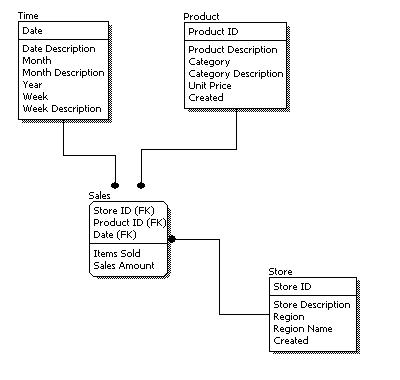
Conceptual Model Design

Conceptual Model Design
Logical Model Design

Logical Model Design
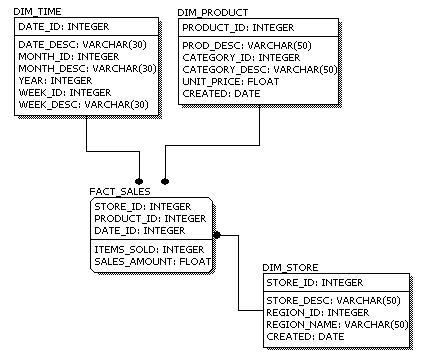
Physical Model Design

Physical Model Design

We can see that the complexity increases from conceptual to logical to physical. This is why we always first start with the conceptual data model (so we understand at high level what are the different entities in our data and how they relate to one another), then move on to the logical data model (so we understand the details of our data without worrying about how they will actually implemented), and finally the physical data model (so we know exactly how to implement our data model in the database of choice). In a data warehousing project, sometimes the conceptual data model and the logical data model are considered as a single deliverable.


Click here to View more...

Compare JSR 168 v/s IBM Portlet API

This section gives a high level comparison between the new JSR 168 Portlet API and the IBM Portlet API. First, it covers the concepts that are similar; then, it explains some of the differences between the two.

Similarities

The following concepts are very similar in JSR 168 and the IBM Portlet API.

Feature Similarities Differences
Portlet modesBoth support the basic portlet modes: Edit, Help, and View.The config mode is optional in the JSR 168. The other optional JSR 168 modes (About, Edit_defaults, Preview, Print) are not supported by the IBM Portlet API.
Window statesThese window states are supported: Maximized, Normal, and Minimized.The Solo window state is only supported by the IBM Portlet API.
Portlet lifecycleThe lifecycle life cycle is the same: init, process requests, destroy.none
Request processingRequest processing is divided into an action phase for processing user actions and a render phase for producing the markup. none
URL encodingBoth support creating URLs pointing to the portlet or to a resource.none
Include servlets/JSPsServlets and JSPs can be included in the portlet.none
Portlet sessionPortlets can store transient information that should span requests in a session.none
Portlet application packagingBoth package portlet applications as WAR files with an additional deployment descriptor called portlet.xml.The portlet.xml format differs.
Expiration-based cachingThe portlet can support expiration based caching.The APIs use different mechanisms to implement this functionality.
The IBM Portlet API uses a polling mechanism where the portal queries the portlet for how long the markup will be valid, whereas in the JSR 168 the portlet can attach an expiration time to each created markup. Sharing the cache entry across users is only possible in the IBM Portlet API.


Differences

The JSR 168 and the IBM Portlet API differ in the following ways.

Feature IBM Portlet API JSR 168
Portlet application entitiesLets you define an abstract portlet application and different instance of this portlet application as concrete portlet applications via the deployment descriptor. This allows reusing settings of the abstract portlet application and only overwriting the parts that are unique for each concrete portlet application. The deployment descriptor follows the web.xml deployment descriptor and defines one portlet application and the portlet definitions for this application.
Portlet entityThere is one portlet object instance per portlet configuration in the Web deployment descriptor. There may be many PortletSettings objects parameterizing the same portlet object according to the Flyweight pattern, provided on a per-request basis. Changes in the PortletSettings apply to all portlet instances of this concrete portlet. The user can also have personal views of concrete portlets that are rendered using the PortletData for customization of the output. PortletSettings and PortletData are merged into one object called PortletPreferences.
Request/Response objectsThe request/response object that the portlet receives in the render call is the same as the one received in the action call. In the JSR 168 these are two different objects.

Exclusive to JSR 168

These items are only available in the JSR 168.

Feature Description
Render parametersRender parameters allow the portlet to store its navigational state.
Render parameters stay the same for subsequent render requests and only change when the portlet receives a new action. This enables bookmarkability and solves the browser back button problem.
Global HttpSession scopePortlets can store data not only with the visibility of the portlet, but also with the visibility of the whole Web application.
RedirectPortlets can redirect to other Web resources in the action phase.

Exclusive to the IBM Portlet API

The following concepts are only available in the IBM Portlet API.

Feature Description
EventingEvents can be sent between portlets.
Additional lifecycle listenersLifecycle listeners besides action and render, (such as begin page) are not available in the first version of the JSR 168.
Portlet menusLets the portlet contribute content to a menu bar to facilitate navigation through portal pages.
Invalidation based cachingLets the portlet explicitly invalidate cached content.


Click here to View more...