Eclipse: Shortcut keys

You should try to keep your hands on keyboard. The less you touch the mouse, the more code you can write. I am trying to keep the mouse laying still and control the IDE completely using keyboard. What do you think is faster: pressing ALT + C or right clicking the project, selecting Team -> Commit?

It is said, that if a function does not have a key binding, it is useless. Below you will find a set of essential keyboard shortcuts that I love. These shortcuts are set up by default, they should all work.

CTRL + D

Delete row. Try it! You no more need to grab the mouse and select the line, no more Home, Shift + End, Delete. Quick and clean.

ALT + Up/Down Arrow

Move the row (or the entire selection) up or down. Very useful when rearranging code. You can even select more rows and move them all. Notice, that it will be always correctly indented.

ALT + Left/Right Arrow

Move to the last location you edited. Imagine you just created a class Foo, and now you are working on a class Boo. Now, if you need to look at the Foo class, just press Alt+Left Arrow. Alt+Right Arrow brings you back to Boo.

CTRL+SHIFT+O

Organize imports. What happens when you first use a class you have not yet imported? You will see an error. But when you press this magical combination, all your missing classes will be imported, and the unused imports will vanish.

CTRL+1

Probably the most useful one. It activates the quick fix. Imagine you create a class, which implements some interface. You will get an error, because the inherited methods are not yet implemented. While you are on line where the error occurs, press this combination to activate the quick fix. Now, select the "Add unimplemented methods" option. You can use the quick fix at every error you ever receive.

Quick fix comes handy in other situations too. My favorite is the "Split variable declaration". Sometimes I need to broaden the scope of a variable. I activate the quick fix, split declaration, and use alt + arrow to put it where it belongs. You can find even more usages: Convert local variable to field, rename in file, Inline local variable..

You could use the "Split variable declaration" on the bar variable, and then move it with Alt+Arrows above the try block..

Or you could use the "Add unimplemented methods" fix here.

The best thing you can do if you see an error is to use the quick fix.

CTRL+SHIFT+T

Open Type. Imagine, that you need to have a look at the Foo class. But, where is the Foo class? Is it in the Boo project and in the foo.bar package? Or somewhere else? With this shortcut, you don't need to know. Just press it, type Foo and you are in.

CTRL+E

Shows you a list of all open editors.


CTRL+F6

Use to move between open editors. This is an slower alternative to Ctrl + E. Comes handy in a situation when you want to periodically switch between two editors, something, what is nearly impossible with Ctrl+E as it sorts entries quite randomly. Or you might just use Alt+Arrows..

CTRL+F7

Move between views. When in editor, press Ctrl+F7 to switch to the Package Explorer, or hold Ctrl and press F7 multiple times to switch to other views.

CTRL+F8

Move between perspectives. The same as previous.


CTRL + F11


Runs the application. What gets launched depends on your settings. It will either launch the last launched class (my preffered way) or it will launch currently selected resource (the default way). If you want to change its behavior read the previous post.

CTL + N


Open new type wizard. This is not very quick because you have to select the wizard type (weather you want to create new class, jsp, xml or something else) in the next step. Much faster way would be if you could just hit the shortcut and invoke the particular wizard. It is possible, just keep reading..

CTRL + M

Maximize or umaximize current tab.

CTRL + I


Corrects indentation.

CTRL + SHIFT + F

Formats code. You can make a beautiful looking code out of a mess with this. It requires a bit of setup, but it is well worth it. You can find its settings under Window->Preferences->Java->Code style->Formatter

CTRL + J


Incremental search. Similar to the search in firefox. It shows you results as you type. Don't be surprised, if you hit this combination, nothing happens - at the first glance. Just start typing and eclipse will move your cursor to the first ocurence.

CTRL + SHIFT + L

Shows you a list of your currently defined shortcut keys.

I don't like your shortcuts

Such is life nowadays. Remember, you can always change those bindings to match your preferences. Open Windows->Preferences->General->Keys. Now you can use the filter to find your shortcut and change its binding.
The real fun begins when you cannot find the command you are looking for. The key here, is to have the "Include unbounds commands" checkbox checked. It will show you all commands, even those, which have no keys bound.

While you are here, I recommend to add the following bindings:

CTRL+SHIFT+G

Bind this to "Generate getters and setters". This is a "must have".

ALT+C

Bind this to SVN/CVS "Commit".

ALT+U


Bind this to SVN/CVS "Update".

Now, type "new" (without quotes) in the filter text. You should see a list of all new type wizards. Choose the most frequently used and assign them a shortcut. For example, the most used wizard for me is the new class wizard. Thus I assigned it the CTRL+SHIFT+N keys.

Let me demonstrate a quick way to create new class now.

Hit CTRL + SHIFT + N (or the combination you assigned in the previous step). This should bring up new class wizard. Type in the name and press ALT+E. You can now select a class which will be a superclass for the newly created class. Hit ALT+A and select all implemented interfaces . Now hit ALT+F and your class will be generated. Eclipse will also provide the default implementation for all abstract and interface methods you inherited.

Did you notice the weird underscores everywhere in the dialog? They give you a hint about the shortcut key. Hit ALT and the underlined letter to press the button, check the checkbox or get focus for a textfield.

Did you notice the underscores?

I think that using shortcut keys is the fastest way to productivity and if not, then at least your wrists will say you a silent thanks. Now, don't wait, go on and assign keys to the features you use most.

One final tip from Andriy:

The problem is that there are so many keyboard shortcuts. I used to keep a printout with all the shortcuts I wanted to use. Finally I wrote an Eclipse plugin MouseFeed, which reminds the keyboard shortcuts for the actions called with mouse. You can even tell it to enforce some shortcuts - the action will run only if called with a keyboard shortcut.

So if you are struggling with yourself, if you want to use shortcuts, but always subconsciously touch the mouse, insta Click here to View more...

Eclipse Navigation Shortcuts

Man, I’m such an impatient guy. I cringe whenever I see somebody squint and frown, looking for a JSP file in Eclipse by browsing painfully through the gazillion JSPs in multiple folders in the Package Explorer. I squirm whenever I see somebody looking for a Java class by clicking through packages, one by one, backtracking if it’s the wrong package, and so on, until he sees the correct Java class.

I mean, any resource in the workspace is literally seconds away. Ditto to classes (and interfaces, and members, and so on). Why waste time and brain cycles to wade through countless lines in countless files? I thought that every Eclipse user knows this, in fact, if you’re reading this, most probably you already know this too. But thousands of Eclipse JDT users who never bother to read tech blogs in all probability will also never bother to find out what Eclipse can do for them. And it’s a pity, really, because they’re really missing out a lot. So maybe if you know one, you can forward this to them or something. Make them more productive or something, ya know. 30 seconds saved for every file can add up to really a lot!

So without further ado, let’s say you want to:

  • Open any file quickly without browsing for it in the Package Explorer: Ctrl + Shift + R. This shortcut opens a dialog box that accepts the name of the file you’re looking for. It even accepts wildcard characters, yo. Typing *-conversion.properties will give you the list of all files that ends with -conversion.properties. So everytime you want to open a file–stop that hand from going to the mouse, and press Ctrl + Shift + R instead!

Opening a resource in Eclipse

  • Open a type (e.g.: a class, an interface) without clicking through interminable list of packages: Ctrl + Shift + T. If what you want is a Java type, this shortcut will do the trick. Unlike the previous shortcut, this even works when you don’t have the Java source file in your workspace (e.g.: when you’re opening a type from the JDK).

Opening a type in Eclipse

  • Go directly to a member (method, variable) of a huge class file, especially when a lot of methods are named similarly: Ctrl + O. Say, you’re browsing through a file which has 500+ lines of code. How do you look for a method? Don’t use Ctrl + F and then type the method name. Use Ctrl + O, which gives you a list of candidates that match what you’ve typed so far. Select the member you want using the arrow keys, and press Enter. (Alternatively, if you just want to jump from one member to the next (or previous), you can use Ctrl + Shift + ↓ or Ctrl + Shift + ↑, respectively.) UPDATE: As Nick pointed out in the comments section, pressing Ctrl + O again shows the inherited members. Thanks Nick! :)

Browse Member

ctrl_o_2.jpg

  • Go to line number N in the source file: Ctrl + L, enter line number. Of course if the stack trace is in the Eclipse console, you can just click the hyperlink. But if it’s in a log file or something, just use this shortcut to go to the line in a jiffy.

Go to a line number

  • Go to the last edit location: Ctrl + Q for . If you have a big file, it’s annoying to jump from one location in line 1000+ to 2000+ only to realize after looking at line 2017 that you’ve made a mistake in that location near line 1000+ just now. This shortcut brings you right to where you last edited a file. Very handy in a big file. Gone are the days of “let’s see… where did I edit it again… nope, nope… ah there it is”. (This even works when you’re already looking at a different file.)
  • Go to a supertype/subtype: Ctrl + T. Before I found this, if I want to go to the superclass of a class, I’d go the the very top of the file, hover my mouse over its superclass, hold Ctrl, and click. Disgusting. Now I just press Ctrl + T and I get this dialog below, which toggles between supertypes and subtypes when you press Ctrl + T again.

Subtype hierarchy view

Supertype hierarchy view

  • Go to other open editors: Ctrl + E. I know you can cycle through the editors using Ctrl + F6 as well, but I prefer Ctrl + E because Ctrl + F6 has this annoying behaviour of requiring you to keep the Ctrl key down, and the distance between Ctrl and F6 is so far I have to twist my left hand to do that. Just press Ctrl + E, and either use the arrow buttons, or type the name of the file you’re editing.

Open editor

  • Move to one problem (i.e.: error, warning) to the next (or previous) in a file: Ctrl + . for next, and Ctrl + , for previous problem. No need to lift your hands off the keyboard to click on that red or yellow stripe.
  • Hop back and forth through the files you have visited: Alt + ← and Alt + →, respectively. I have to admit I don’t find myself using these two often, though.
  • Go to a type declaration: F3. Alternatively, you can hold Ctrl down and click the hyperlinked variable or class or whatever it is the declaration of which you want to see–but why lift your hand off the keyboard? Just press F3 and Eclipse will bring you to the declaration of whatever is at the cursor at that moment.

OK, that’s it for this post. There are tons of other Eclipse shortcuts not covered by this article. To see the whole list, just open up your Eclipse (I’m assuming Eclipse 3.2 here–in older or more recent versions this may differ slightly), go to Help → Help Contents → Java Development User Guide → Reference → Menus and Actions. The whole motherload is there, from generating comments, correcting indentations, surrounding with, and so on.

The point I’m trying to get across is: Eclipse has a LOT of shortcuts to make things real easy for you. Java (or heck, any software) development is hard. We shouldn’t make it harder on ourselves by fighting our tools! Let our tools help us as much as possible, so we all can go back on the dot and spend more time with our family, lovers, or whatever it is we want to spend more time on. There’s no honour in working hard inefficiently. Only disgrace.

Click here to View more...
Free Orkut Themes


Hitman Extreme...
Install This theme - Click Here


Linking Park Rewind...Install This theme - Click Here


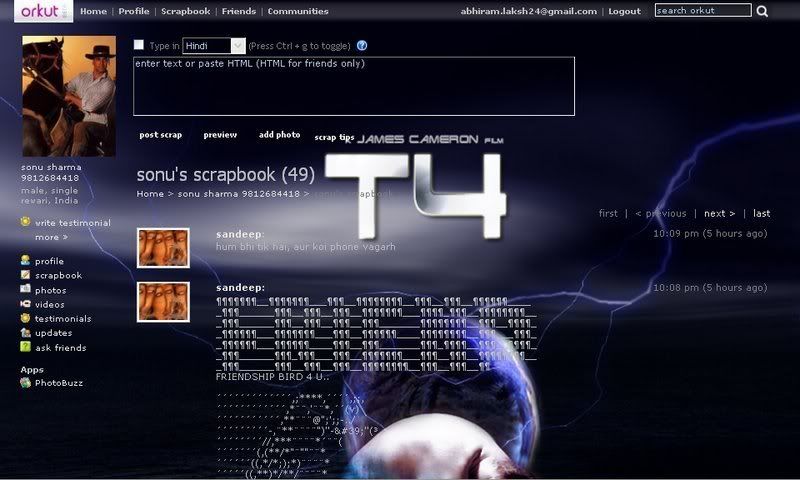
Terminator 4


Copy the below code.
  • Goto your orkut profile
  • Paste it into the Address bar. (where you type www.orkut.com, etc.)
  • Press Enter and wait for a few mins.
  • After the theme is loaded you will be redirected to your profile with the new theme.

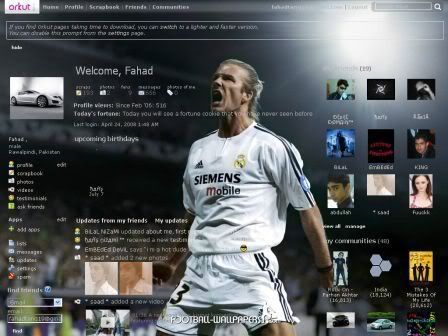
David Beckham


Copy the below code.
  • Goto your orkut profile
  • Paste it into the Address bar. (where you type www.orkut.com, etc.)
  • Press Enter and wait for a few mins.
  • After the theme is loaded you will be redirected to your profile with the new theme.


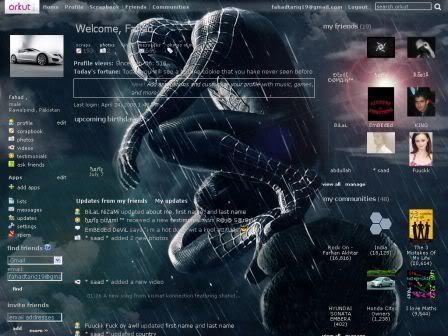
Spiderman


Copy the below code.
  • Goto your orkut profile
  • Paste it into the Address bar. (where you type www.orkut.com, etc.)
  • Press Enter and wait for a few mins.
  • After the theme is loaded you will be redirected to your profile with the new theme.

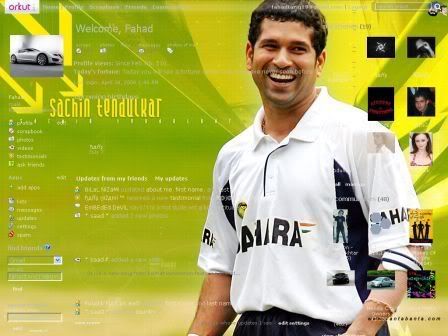
Sachin Tendulkar


Copy the below code.
  • Goto your orkut profile
  • Paste it into the Address bar. (where you type www.orkut.com, etc.)
  • Press Enter and wait for a few mins.
  • After the theme is loaded you will be redirected to your profile with the new theme.

Shah Rukh Khan


Copy the below code.
  • Goto your orkut profile
  • Paste it into the Address bar. (where you type www.orkut.com, etc.)
  • Press Enter and wait for a few mins.
  • After the theme is loaded you will be redirected to your profile with the new theme.

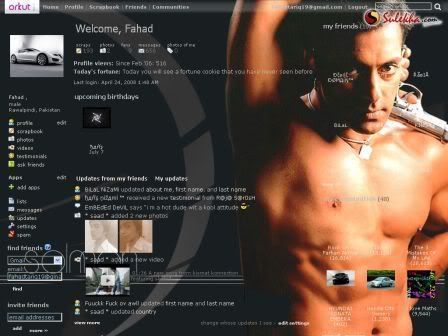
Salman Khan


Copy the below code.
  • Goto your orkut profile
  • Paste it into the Address bar. (where you type www.orkut.com, etc.)
  • Press Enter and wait for a few mins.
  • After the theme is loaded you will be redirected to your profile with the new theme.

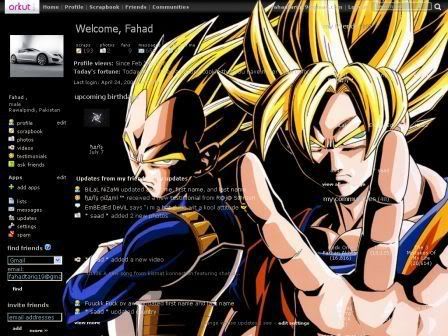
Goku


Copy the below code.
  • Goto your orkut profile
  • Paste it into the Address bar. (where you type www.orkut.com, etc.)
  • Press Enter and wait for a few mins.
  • After the theme is loaded you will be redirected to your profile with the new theme.


Aishwarya Rai Orkut Themes

Aishwarya Rai Orkut Themes

To download this orkut theme, click here.

Aishwarya Rai Orkut Themes

To download this orkut theme, click here.

Christiano Ronaldo Orkut Theme

Christiano Ronaldo Orkut Theme

To download this orkut theme, click here.

Dhoni Orkut Theme

Dhoni Orkut Theme

To download this orkut theme, click here.


Halo 3 Orkut Theme

Halo 3 Orkut Theme

To download this orkut theme, click here.

Kareen Kapoor Orkut Themes

Kareen Kapoor Orkut Themes

To download this orkut theme, click here.

Kareen Kapoor Orkut Themes

To download this orkut theme, click here.

Katrina Kaif Orkut Theme

Katrina Kaif Orkut Theme

To download this orkut theme, click here.

NBA Orkut Theme

NBA Orkut Themes

To download this orkut theme, click here.

Ronaldinho Orkut Theme

Ronaldinho Orkut Theme

To download this orkut theme, click here.

Salman Khan Orkut Themes

Salman Khan Orkut Themes

To download this orkut theme, click here.

s:

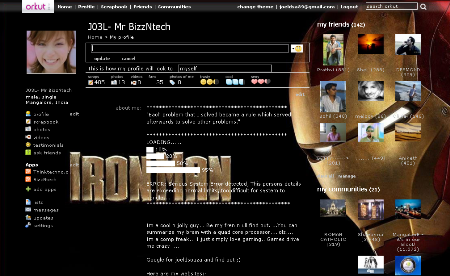
Install Ironman Reloaded theme

Install Dark Knight Theme

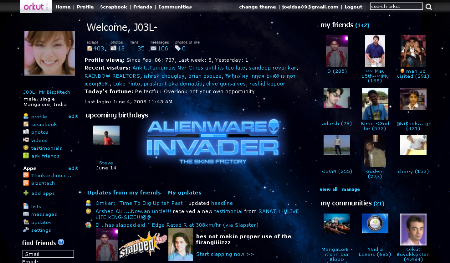
Install Alieninvader theme


Install Emmawatson 2theme

Install Firefox theme

Install Radiant Explosion theme

Install Orkut servant theme

Install Katrina Kaif theme

Install Hrithik Roshan theme

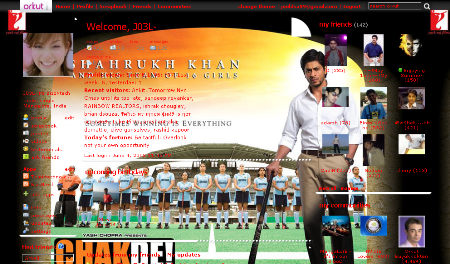
Install SRK Chak DE theme

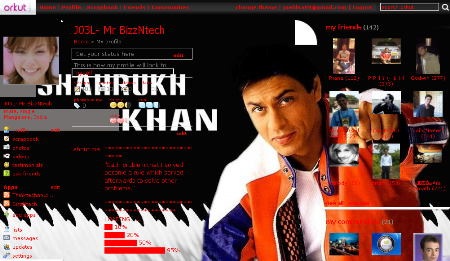
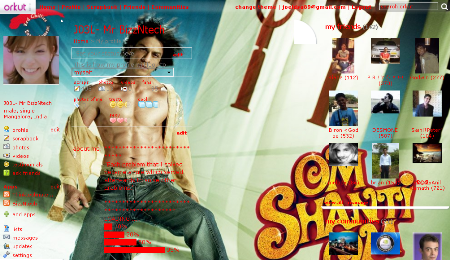
Install SRK Om shanti Om 6 pack theme

Install SRK plain theme

Install Kajol theme

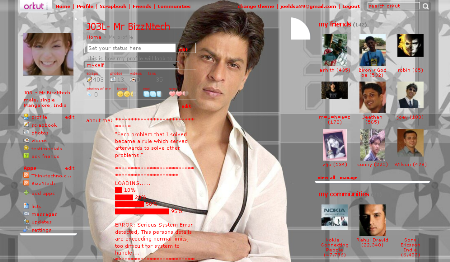
Install SRK in White shirt theme

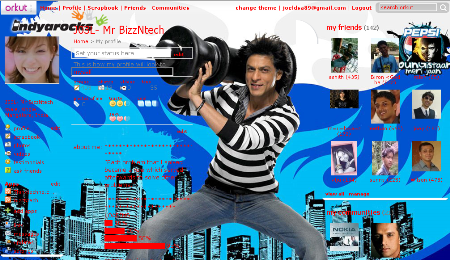
Install SRK Youngistan theme

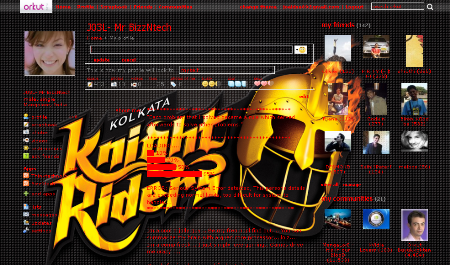
Install Kolkata Knight Riders theme

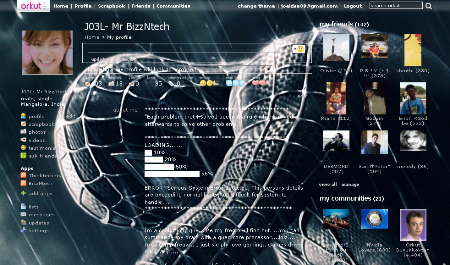
Install Spiderman3 Black theme

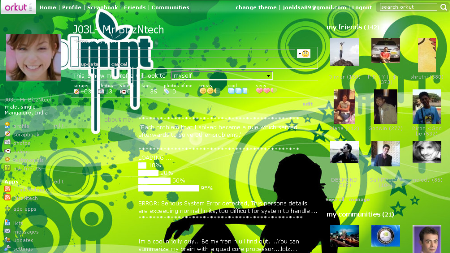
Install coolmint theme

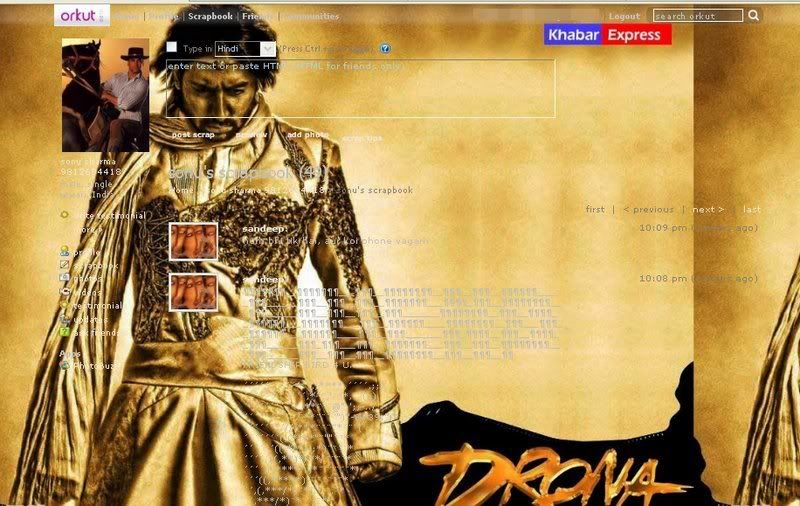
drona


Copy the below code.
  • Goto your orkut profile
  • Paste it into the Address bar. (where you type www.orkut.com, etc.)
  • Press Enter and wait for a few mins.
  • After the theme is loaded you will be redirected to your profile with the new theme.

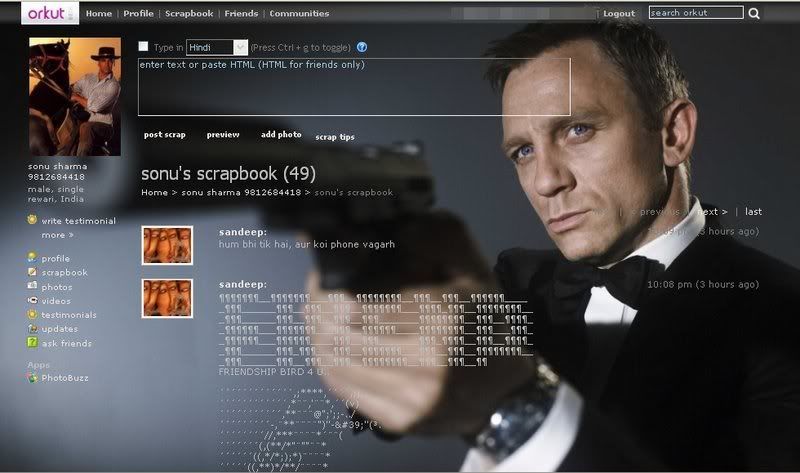
James Bond


Copy the below code.
  • Goto your orkut profile
  • Paste it into the Address bar. (where you type www.orkut.com, etc.)
  • Press Enter and wait for a few mins.
  • After the theme is loaded you will be redirected to your profile with the new theme.

Bachna Ae Haseeno


Copy the below code.
  • Goto your orkut profile
  • Paste it into the Address bar. (where you type www.orkut.com, etc.)
  • Press Enter and wait for a few mins.
  • After the theme is loaded you will be redirected to your profile with the new theme.

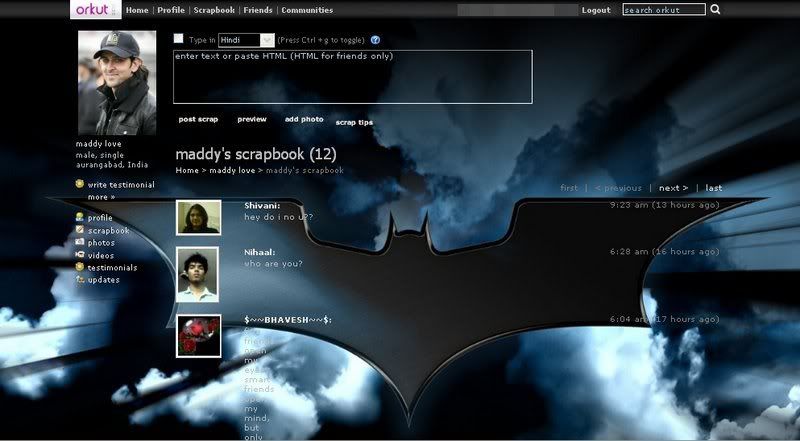
Batman


Copy the below code by selecting it and pressing Ctrl+C or right-click and select Copy.
  • Goto your orkut profile
  • Paste it into the Address bar. (where you type www.orkut.com, etc.)
  • Press Enter and wait for a few mins.
  • After the theme is loaded you will be redirected to your profile with the new theme.

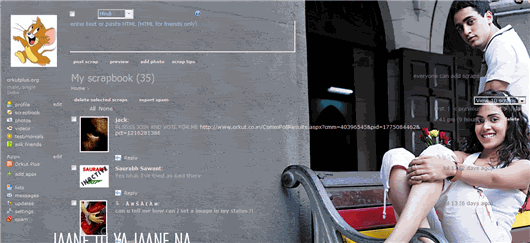
Jaane Tu Ya Jaane Na


Copy the below code by selecting it and pressing Ctrl+C or right-click and select Copy.
  • Goto your orkut profile
  • Paste it into the Address bar. (where you type www.orkut.com, etc.)
  • Press Enter and wait for a few mins.
  • After the theme is loaded you will be redirected to your profile with the new theme.

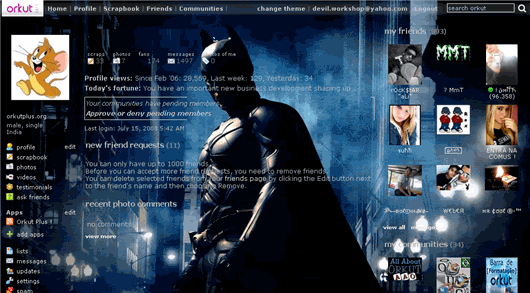
Batman - Dark Knight


Copy the below code.
  • Goto your orkut profile
  • Paste it into the Address bar. (where you type www.orkut.com, etc.)
  • Press Enter and wait for a few mins.
  • After the theme is loaded you will be redirected to your profile with the new theme.

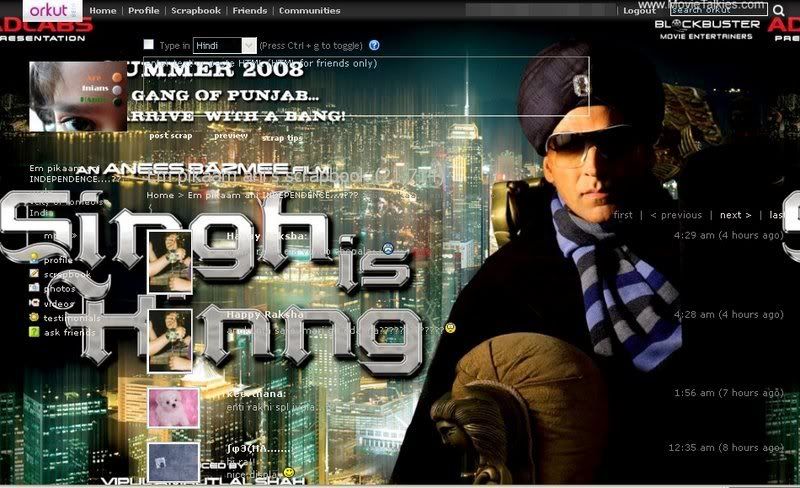
Singh is Kinng


Copy the below code.
  • Goto your orkut profile
  • Paste it into the Address bar. (where you type www.orkut.com, etc.)
  • Press Enter and wait for a few mins.
  • After the theme is loaded you will be redirected to your profile with the new theme.

Phoonk


Copy the below code.
  • Goto your orkut profile
  • Paste it into the Address bar. (where you type www.orkut.com, etc.)
  • Press Enter and wait for a few mins.
  • After the theme is loaded you will be redirected to your profile with the new theme.

Pirate Skull


Copy the below code.
  • Goto your orkut profile
  • Paste it into the Address bar. (where you type www.orkut.com, etc.)
  • Press Enter and wait for a few mins.
  • After the theme is loaded you will be redirected to your profile with the new theme.

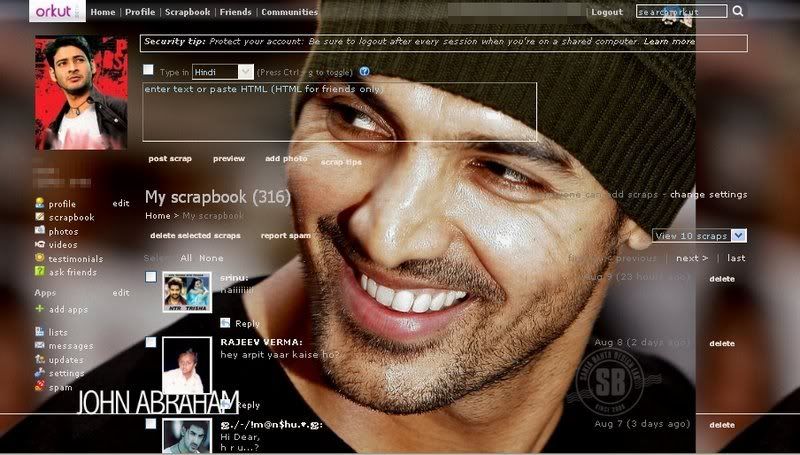
John Abraham


Copy the below code.
  • Goto your orkut profile
  • Paste it into the Address bar. (where you type www.orkut.com, etc.)
  • Press Enter and wait for a few mins.
  • After the theme is loaded you will be redirected to your profile with the new theme.

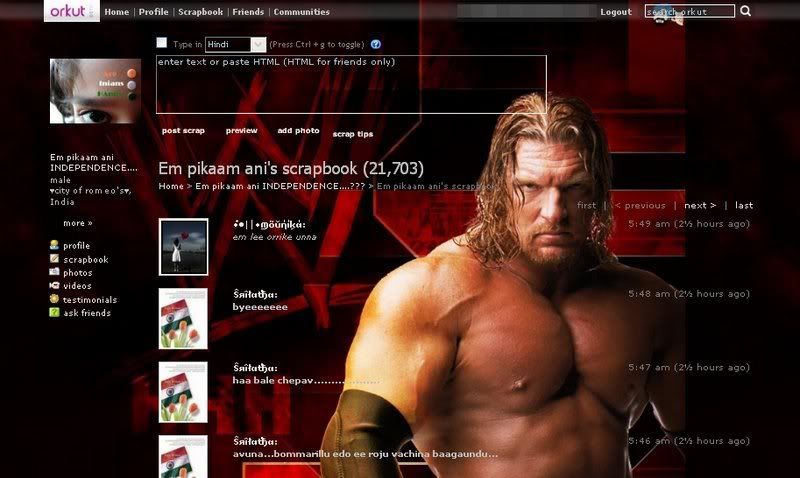
Triple H


Copy the below code.
  • Goto your orkut profile
  • Paste it into the Address bar. (where you type www.orkut.com, etc.)
  • Press Enter and wait for a few mins.
  • After the theme is loaded you will be redirected to your profile with the new theme.

Cartoon


Copy the below code.
  • Goto your orkut profile
  • Paste it into the Address bar. (where you type www.orkut.com, etc.)
  • Press Enter and wait for a few mins.
  • After the theme is loaded you will be redirected to your profile with the new theme.

Naruto


Copy the below code.
  • Goto your orkut profile
  • Paste it into the Address bar. (where you type www.orkut.com, etc.)
  • Press Enter and wait for a few mins.
  • After the theme is loaded you will be redirected to your profile with the new theme.

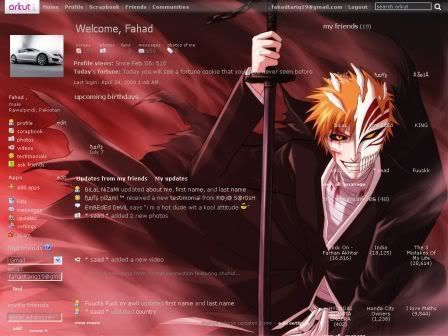
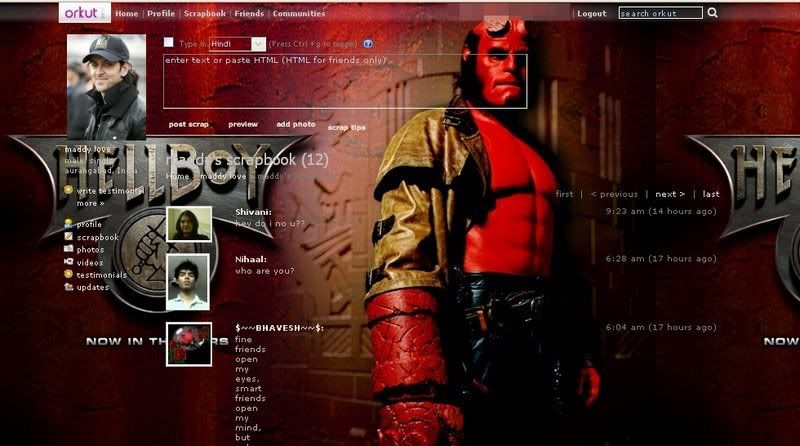
HellBoy


Copy the below code.
  • Goto your orkut profile
  • Paste it into the Address bar. (where you type www.orkut.com, etc.)
  • Press Enter and wait for a few mins.
  • After the theme is loaded you will be redirected to your profile with the new theme.

Emma Watson Theme

Emma Watson Orkut theme

Download this theme from here.

SRK Theme

Shah Rukh Khan Orkut theme

Download this theme from here.

Daniel Radcliffe Theme

Daniel Radcliffe Orkut theme

Download this theme from here.

Firefox Theme

Firefox Orkut theme

Download this theme from here.

Skull Theme

Skull Orkut theme

Download this theme from here.

NBA Theme

NBA Orkut theme

Download this theme from here.

Puppy Theme

Puppy Orkut theme

Download this theme from here.

City Life Theme

City Life Orkut theme

Download this theme from here.

Click here to View more...